Projects
This guide shows you how to create, edit, copy, share, delete, and manage your projects in Sympheny.
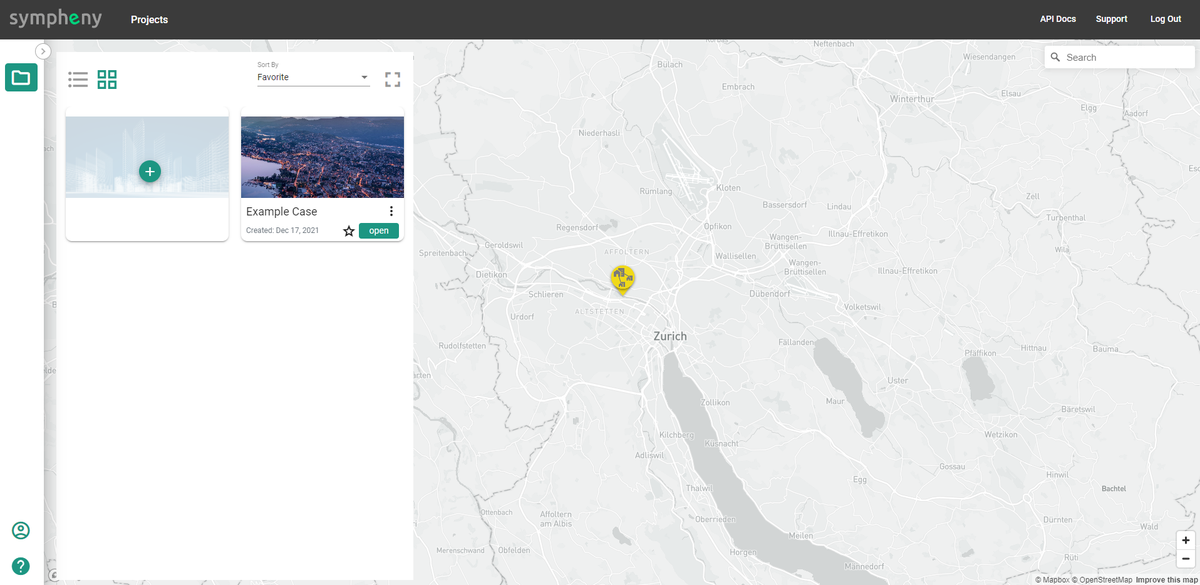
Navigate your projects page
When you log in, you land on your Projects page. This page shows a geolocation view of all your existing projects. A sample project named "Example Case" is available to demonstrate project functionality.
Create a new project
- Click Add project.
- Assign a name and geolocation for your project.
- Click Save.
Manage existing projects
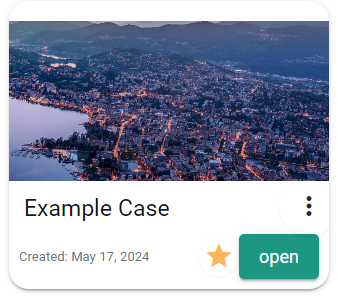
Most project management actions start by clicking the three dots on the project you want to work with. This opens a menu with the following options:
- Edit project
- Copy project
- Delete project
- Send project copy
- Reinitialize project (example projects only)
- Share project
- Unlock (shared projects only, while locked)
Send a project copy
To send a project copy to another Sympheny user:
- Choose Send project copy from the menu.
- Enter the recipient's email address.
- Click Send to deliver the project copy.
Note
The recipient receives a copy of the project's current state. Any changes you make afterward are not reflected in their copy.
Share a project
Sharing grants other users access to your Sympheny projects. To share a project:
- Choose Share project from the menu.
- Choose Add secondary owner. You can add multiple users.
- For each user, set an access level: Read-only (view the project but do not modify it) or Edit (full control).
Note
Only one person can edit a shared project at a time. Sympheny locks the project while someone has it open, and unlocks it automatically after 10 minutes of inactivity. To unlock it sooner, choose Unlock from the project's three-dot menu on the Projects page.
Reinitialize a project
This option is available only for the example projects provided by Sympheny. Click such a project, then select Reinitialize to restore it to its original state.