Skip to content

On-site resources

On-site resources step in the scenario editor

On-site resources are renewable resources with intermittent (temporally varying) availability. In Sympheny, you can quickly generate solar irradiance profiles and wind profiles of 8,760 time steps using several methods.

On-site resources are functionally identical to imports, with fewer available parameters. For resources with constant availability, like geothermal energy or air used in a heat pump, create an import with a fixed maximum capacity (kW) and without an energy price (CHF/kWh), instead of creating an on-site resource.

Energy produced from on-site resources can be curtailed. Curtailment occurs when the available on-site resource leads to higher energy production than required by demand and export (see the diagram below) at any given time.

Curtailment of on-site resource production above demand and export

Creating on-site resources

Sympheny offers several workflows for creating on-site resources:

  • Add new > Generate profile > Available resource area (m2) — generate a solar profile using the Sympheny database; easy to create profiles for multiple hubs.
  • Add new > Upload profile > Available peak load (kWp) — upload your own normalized profile; easy to create profiles for multiple hubs.
  • Add new > Upload profile > Generic availability (kWh/h) — upload your own profile.
  • Add from map > Solar resource > Optimize slope and azimuth — explore the optimal orientation of solar panels relative to the demand profile.
  • Add from map > Solar resource > Custom slope and azimuth — accurately estimate the solar profile for a specific location, surface, and orientation.
  • Add from map > Solar resource > Weighted sum aggregation — generate an average solar profile from multiple surfaces on the map.
  • Add from map > Wind resource — generate a wind power production profile using terrain parameters.

Add new

Add a new on-site resource to your scenario. This resource is free and can be exploited whenever it is available. In the toolbox, select an energy carrier corresponding to the resource type. A name is generated based on the energy carrier and existing profiles, and can be edited. The hub and stage where the resource is available are selected automatically and can be edited.

Adding a new on-site resource

Available resource area (m2)

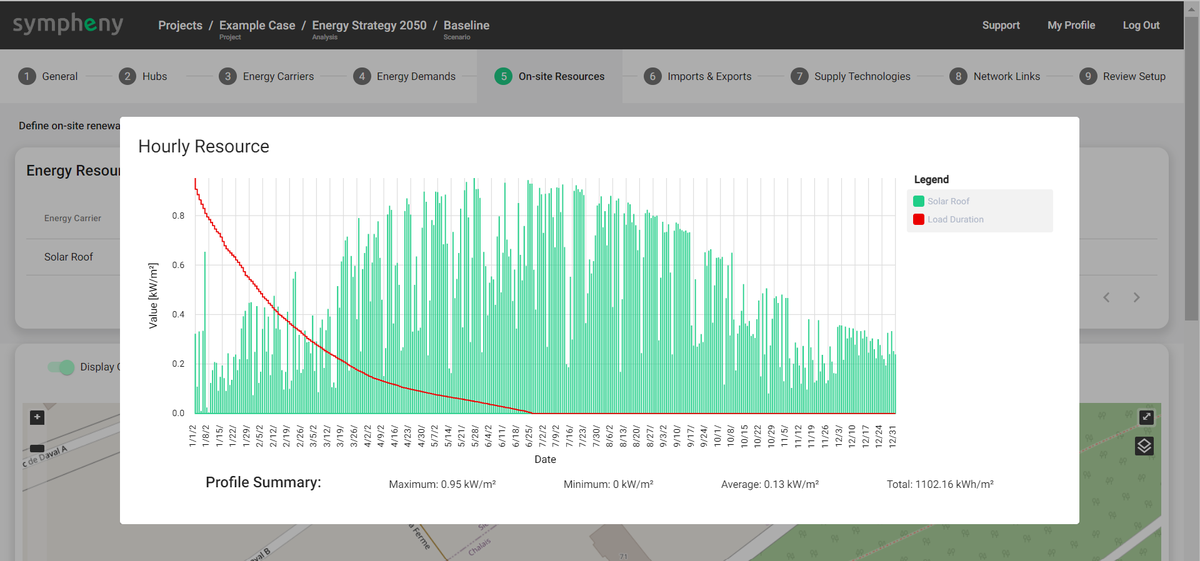
When sizing a new solar PV field, the only available information may be the available resource area (m2) and the location. Select Generate profile, click Generate profile, then select the database, location, type, and slope, and click Next. Sympheny generates a solar irradiance profile for a 1 m2 surface area.

Generating a solar profile from resource area

The available resource area (m2) is the maximum available irradiance profile. The optimization result determines the optimal size of the solar technology to install. As curtailment may happen, the installed capacity is not always equal to the maximal operational capacity.

Installed capacity versus maximal operational capacity

Available peak load (kWp)

When the hourly profile is measured or simulated using a third-party tool, you can use it in Sympheny with the Upload profile function. In this workflow, the maximum value of the uploaded profile should equal 1 kW. The total energy available depends on the available peak load (kWp). The profile can be the output of the technology (for example, PV production or wind turbine production), provided the technology's efficiency is 100%. In that case, the kW-peak (kWp) refers to the maximum capacity of the technology that uses this on-site resource.

Tip

To upload a profile, select or drag and drop an .xlsx file with the correct format. The file must consist of a single sheet with 2 columns, no header, and exactly 8,760 rows. The first column must contain incrementing numbers from 1 to 8,760. The second column must contain the values for the hourly profile, for every hour of the year from 00:00 on January 1st to 23:00 on December 31st. Make sure the units are correct. The maximum file size is 2 MB. Uploaded profiles can be saved for later use. Download the template profile (XLSX)

For example, the hourly resource profile of wind power indicates the availability of wind-sourced electricity in kW per unit of peak load (kW/kWp). In this case, a conversion efficiency is already factored into the hourly resource profile, so the conversion efficiency of the wind turbine technology should be 100%.

Wind power hourly resource profile

The use of the on-site resource is determined by the optimal capacity of the technologies that utilize that resource.

Optimal capacity determining on-site resource use

Generic availability (kWh/h)

This workflow is more flexible than the previous two. For example, you can use it to create an intermittent industrial waste heat profile. In this workflow, the uploaded profile should be in kWh for each hour of the year.

Uploading a generic availability profile

Tip

You can download irradiation profiles from external databases such as PVGIS — just make sure the units are consistent with the Sympheny workflow.

Add from map

Add a new on-site resource to your scenario from the map.

Adding an on-site resource from the map

Solar resource > Optimize slope and azimuth

Click Select surface from map to select a surface, like the outline of a hub, to get the surface area (m2) of the geometry and its geographic location. The optimizer defines the optimal slope and azimuth.

Optimizing slope and azimuth for a solar resource

Solar resource > Custom slope and azimuth

Click Select surface from map to select a surface, like the outline of a hub, to get the surface area (m2) of the geometry and its geographic location. Specify the slope and azimuth.

Possible settings:

  • Slope 0°: flat
  • Slope 90°: vertical
  • Azimuth 0°: south
  • Azimuth -90°: east
  • Azimuth 90°: west
  • Azimuth 180° / -180°: north

Setting a custom slope and azimuth for a solar resource

Solar resource > Weighted sum aggregation

Calculate an aggregated solar profile, normalized in kW/m2, for all selected surfaces. The calculation accounts for the slope and azimuth of each roof element. The generated profiles are aggregated using a weighted average for each surface, with surface areas as weights.

Wind resource

Set surface (m2), terrain type, roughness length (m), and height (m) to generate a wind resource profile based on those parameters.

  • Surface (m2) should be the number of wind turbines multiplied by the total swept area per turbine.
  • Terrain type determines the terrain classification.
  • Roughness length (m) is based on the terrain type.
  • Height (m) is the height of the middle of the turbine.

The maximum theoretical efficiency of the wind turbine technology, using this resource profile in kWh-wind, is 59.3%. For more information, see Wind profile power law.

Generating a wind resource profile