Supply technologies step
In this step you define the technology candidates the optimiser can install: conversion technologies that turn one energy carrier into another, and storage technologies that hold an energy carrier for later use.
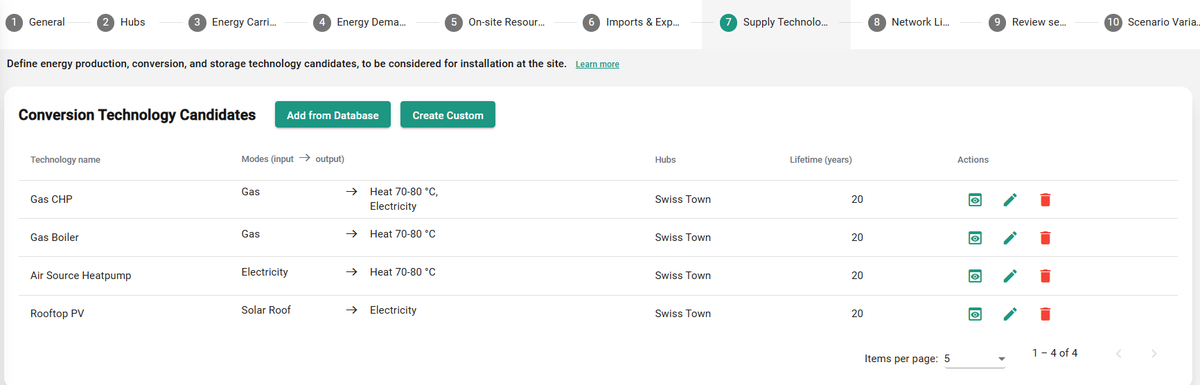
Conversion technologies
There are two ways to add a conversion technology candidate to your scenario: Add from Database and Create Custom. For background, see the Conversion technologies concept page.
Add from Database
In the dialog that appears, follow these steps:
-
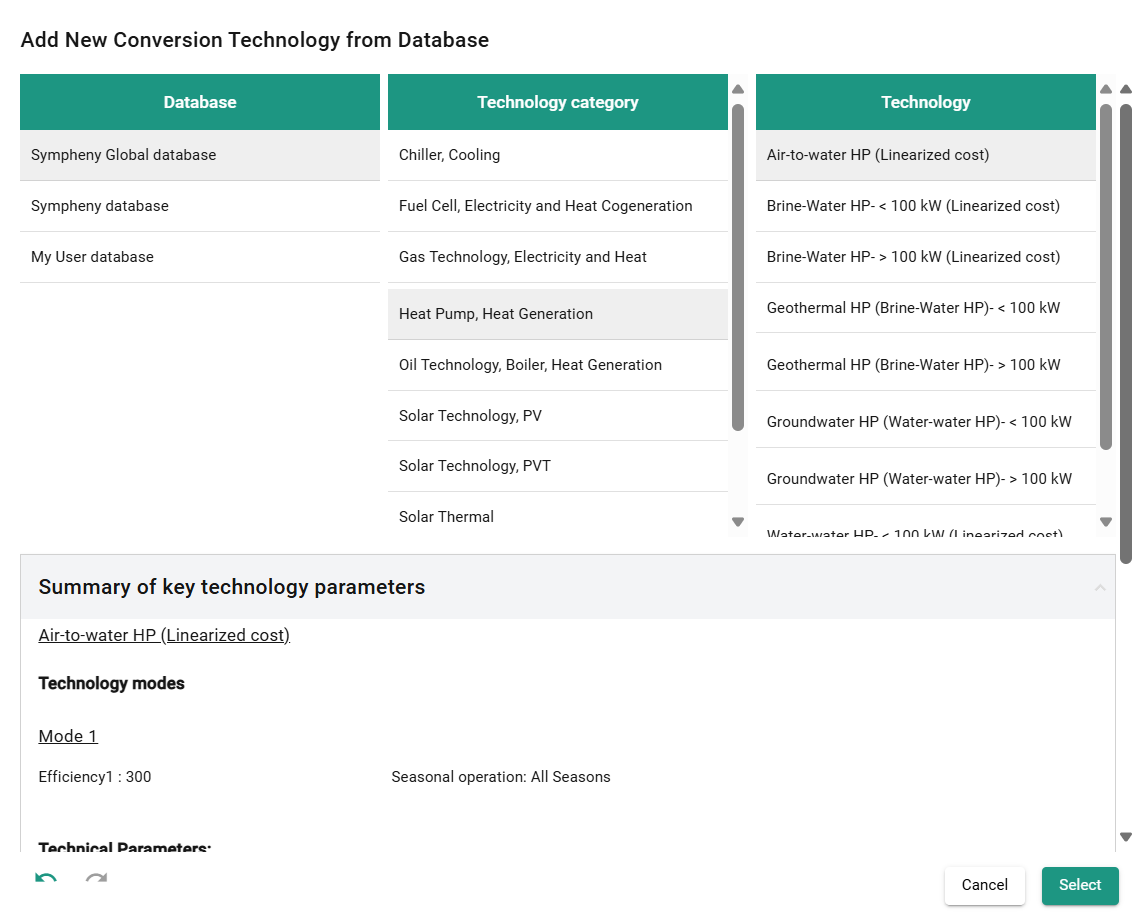
Select the database to load your data from. In most cases, the options are:
- Sympheny Global database
- Organization database (linked to your organisation)
- My User database (linked to your personal account)
-
Choose a technology category.
-
Select the specific technology you want to load into your scenario. Clicking a technology displays a summary of its key parameters (see figure below).
-
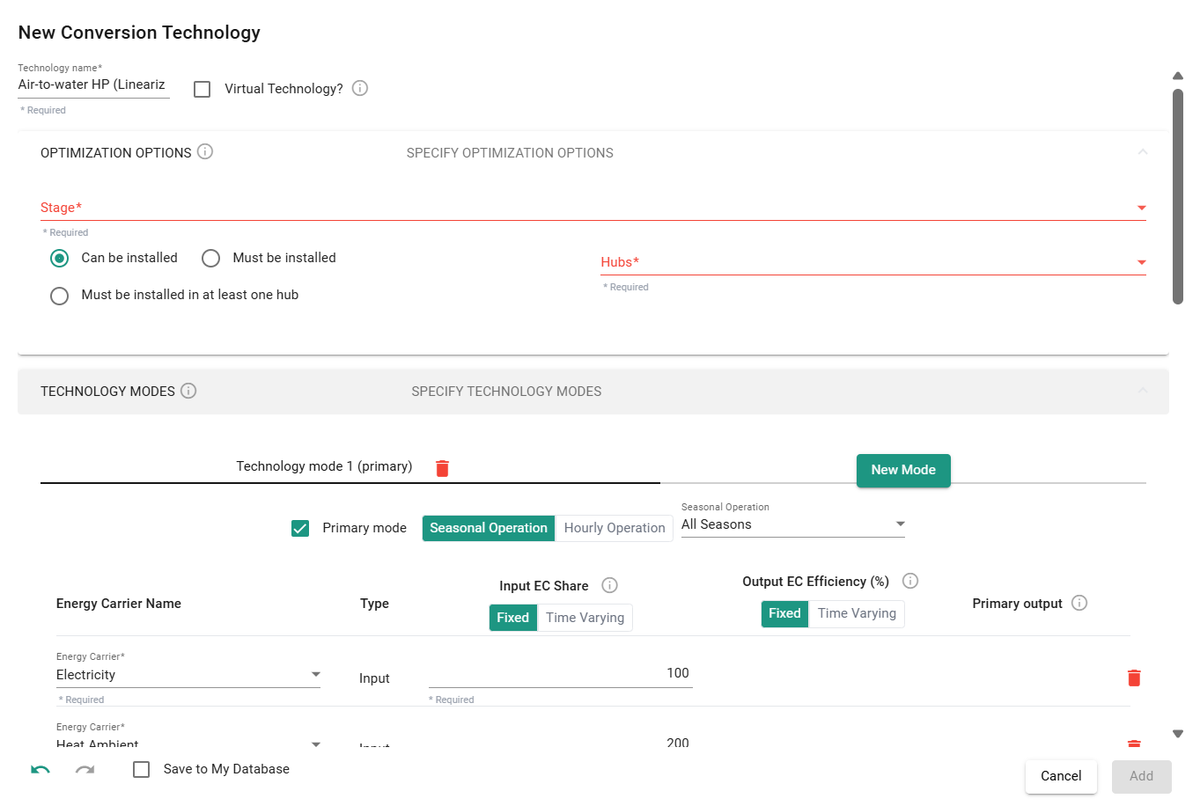
Click Select. A window opens where you can view and further edit the technology model, with parameters from the database pre-filled into the corresponding fields.
-
Assign the technology to one or more hubs and stages in the Optimization Options section. This defines where and when the technology can be installed. Click Add at the bottom of the dialog to add the technology candidate to your scenario. It appears in the energy hub diagram at the bottom of the page.
Tip
You can also build a customised technology database for the Sympheny web app. See Database Center.
Create Custom
Clicking Create Custom opens a dialog where you assign parameters for the specific technology. It's the same window as step 4 of Add from Database, but the fields aren't pre-filled with any values.
Storage technologies
Storage technology candidates are the systems that store an energy carrier for later use, such as batteries or thermal storage. For background, see the Storage technologies concept page.
Coming soon
A step-by-step guide for this part of the step is in preparation.